If you have a fault with your broadband
If you have our Premium plan and your broadband goes down, we’ll send you a 4G WiFi dvice that uses EE’s 4G network.
You can connect up to 20 devices wirelessly. You can't connect devices with a cable.
Want to know more? Check out our Keep Connected Promise. If you're on our Ultimate plan, you'll already have our Connectivity Backup.
We'll let you know when your fault is fixed. If you'd like an update, you can track your fault online.
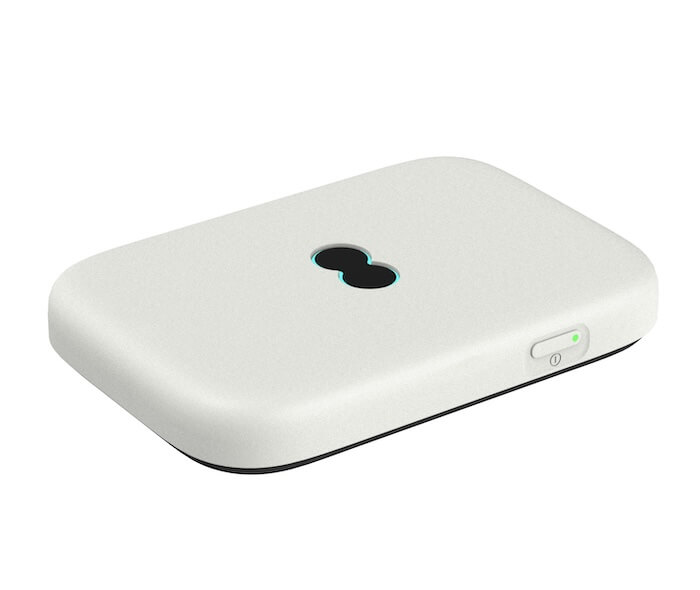
Setting up your 4G WiFi device
- Plug in your 4G WiFi device and switch it on.
- Find the WiFi name and password on the device or the Keep Me Card.
- Connect to the WiFi to start browsing.
- Insert your EE Sim.
- Plug in your 4G WiFi device and switch it on.
- Find the WiFi name and password on the device or the Keep Me Card.
- Connect to the WiFi to start browsing.
Charging your 4G WiFi device
Use the cable you get with it. Press the Power button for a few seconds to turn it on.
Battery lights:
- Solid green - Battery charged (20%-100%)
- Flashing blue - Charging
- Solid red - Battery below 20%
What the lights mean
| Colour of light | What it means |
 | Aqua Your 4G WiFi is connected to the internet. If you can't get online, try restarting it using the Power button. |
 | Flashing aqua Your 4G WiFi is connecting to the internet. Wait a minute. It'll turn aqua when ready. |
 | Orange Your 4G WiFi is disconnected from EE. Try logging in to the Web User Interface and reconnecting. |
 | Solid red There's a problem. Restart your device using the Power button. If it stays red, press the factory reset button using a paperclip. |
 | Flashing red Your 4G WiFi is working but isn't online. Check the SIM or move the device to a better spot. |
 | Flashing green Your 4G WiFi is starting up. Wait 2 minutes. If it stays green, restart the device using the Power button, or press the factory reset button using a paperclip. |
Flashing white You've got a text. Log in to the Web User Interface to read it. |
Troubleshooting
- Can't see the WiFi name? Press the Power button to wake it up.
- Slow speeds? Move the device to a spot with better signal.
- Device not responding? Restart by:
- holding the power button for 10 seconds
- pressing the reset button with a paperclip
Web User Interface
Use it to:
- view signal, connection and WiFi status
- read SMS messages
- change your wireless network name and password
- enable or disable 2.4GHz and 5GHz frequencies
Other advanced features can be found in the user guide.
Accessing the interface
Go to http://192.168.1.1 in a web browser on a device that's been connected to the 4G WiFi device's wireless network.
The default admin password is on the 4G WiFi device and the Keep Me Card.
Returning the 4G WiFi device
When your fault is fixed, the device will stop working after a few days. We'll send you a mailing bag and pre-paid label.
- Pack the device, cables and instructions in the original box.
- Put the box in the mailing bag and seal it.
- Stick the pre-paid label over the old one.
- Post in any post box, or take to a Post Office for proof of purchase.
Documents
You will need Adobe Reader to view PDF documents.