About the EE Digital Home Phone
Enjoy crystal clear voice calling with our next generation home phone and digital voice services, compatible with BT and EE broadband.
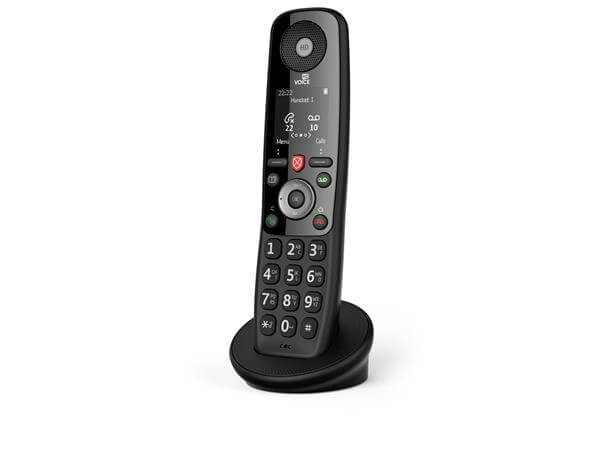
Key features
- Compatible with both BT and EE Smart Hubs
- HD Voice for excellent sound quality
- Easy set up
- One touch access to BT 1571 voicemail
- See and hear if you have a second call waiting
- Call Diversion so you never miss a call
- Multi Call – so two people can be on the phone at the same time
- An easy-to-read screen shows when you have messages
- Save up to 500 contacts
- Redial any of the last 30 calls you made
- Long-range reception, up to 300m outdoors, 50m indoors
Find out more about Digital Home Phone features.
Power consumption
| Energy efficiency | |
| Standby mode of charging cradle with handset | 0.6W |
| Standby mode of charging cradle without handset | 0.3W |
What's in the box
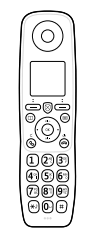 | Your EE Home Phone | |
 | Charger base | |
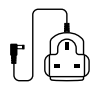 | Power supply | |
 | Two rechargeable batteries (AAA NiMH 800mAh). If you can’t find them in the box, they may already be in the handset and you’ll need to pull out the tab at the bottom of the handset to activate them. If your phone switches on you’re good to go. | |
 | User guide |
Important
Only use the mains power adaptors, cables and rechargeable batteries supplied in this box or this product might not work. Any replacement rechargeable batteries must be of the same type. EE accepts no responsibility for damage caused to your Home Phone if you use any other type of batteries.
Get to know your EE Home Phone
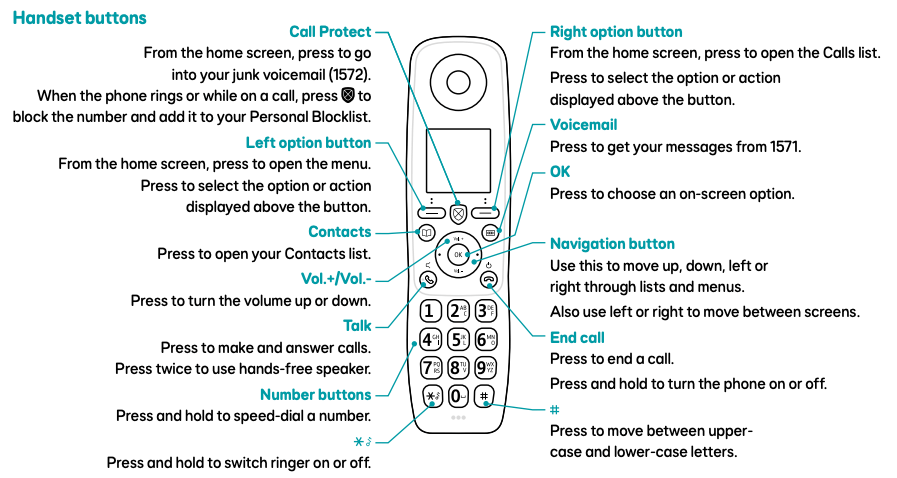
Call Protect | Just below the screen in the centre. It’s flat on top and shaped like a small shield.
|
| Left option button | Slim key just below the screen on the left.
|
| Right option button | Slim key just below the screen on the right.
|
| Contacts | Round button below the left option button. Press to open your contacts list. |
| Voicemail | Round button below the right option button. Press to listen to your messages (1571). |
| Vol.+/Vol.- and Navigation button | The round pad in the middle with a tactile ring:
|
| OK | Key in the centre of the navigation/volume pad. Press to select an option. |
| Talk | Key just below and left of the pad (with a raised dot). Press to make or answer calls. Press twice for hands‑free speaker. |
| End call | Key just below and right of the pad. Press to end a call. Press and hold to turn the phone on or off. |
| Number buttons | Standard keypad below the navigation pad.
|
| * | The key at the bottom left of the number keys. Press and hold to turn the ringer on or off. |
| # | Key at the bottom right of the number keys. Press to switch between upper and lower case letters. |
Setting up your Digital Home Phone
First, make sure your hub is set up and switched on. That’s what keeps your phone connected.
When you see a steady blue or aqua light on the front of your hub, you’re good to go and can start setting up your phone.
If things don’t work straight away, give it 5 minutes and try again. Your hub might just be finishing an update.
Need the full step‑by‑step? Head over to Setting up your Digital Home Phone service for detailed instructions.
Using your Digital Home Phone
Use the navigation button to move through the levels of the handset menu. Press the menu button to access these options.
| Menu | 2nd level | 3rd level | 4th level |
|---|---|---|---|
| Call Features | Call Diversion | All calls | Check |
| Setup | |||
| Cancel | |||
| On busy | Check | ||
| Setup | |||
| Cancel | |||
| Not answered | Check | ||
| Setup | |||
| Cancel | |||
| Call Waiting | Check status | ||
| Turn On | |||
| Turn Off | |||
| Call Barring | Check status | ||
| Set up | All outgoing calls | ||
| International | |||
| Operator calls | |||
| Mobile calls | |||
| Premium rate | |||
| 123 and 118 calls | |||
| Cancel | All outgoing calls | ||
| International | |||
| Operator calls | |||
| Mobile calls | |||
| Premium rate | |||
| 123 and 118 calls | |||
| Alarm | Add | ||
| Edit | |||
| Delete | |||
| Accessibility | Vision | Large text | |
| Colour scheme | |||
| Hearing | Ringer boost | ||
| Adjust tone | |||
| Settings | Sound | Ringing | |
| Handset tones | |||
| Display | |||
| 1571 message alert | |||
| Handset name | |||
| Call settings | |||
| Line settings | Phone number | ||
| Call settings | Multi call | ||
| Auto join calls | |||
| DECT settings | Change system PIN | ||
| Product info | Handset | ||
| Update software | |||
| Base | |||
| Registration | Register handset | ||
| Deregister | |||
| Reset | Reset handset | ||
| Base settings |
Accessibility features
Vision settings
Changing contrast
- Select Settings and scroll to Display.
- Use the left or right navigation buttons to select Contrast.
- Adjust to your liking, then press Save.
Hearing settings
Changing tones
- Select Settings and scroll to Sounds.
- Use the left or right navigation buttons to pick a tone, then press Save.
Changing the call volume
- When you’re on a call, press the Vol.+ or Vol.- buttons to turn the sound up or down in the earpiece, or the speaker if you’re hands‑free.
- Need an extra boost? Keep pressing Vol.+ until you see Amplify. It’ll switch off automatically when the call ends.
Disposing of your old electrical and electronic equipment
The Government is legally required to minimise the unsorted waste disposal of electrical and electronic equipment and to maximise its separate collection and environmentally sound management.
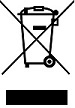
This product may contain substances that could be harmful to people or the environment if it’s not recycled correctly. Check with your retailer to find out how to recycle your old equipment, or if you’ve bought something from us that has the crossed-out wheelie bin symbol. It’s similar to the kit you don’t need any more, you can send us your old kit and we’ll get rid of it in an environmentally friendly way.
For more information, please visit ee.co.uk/weee. We’re not responsible for the costs of returning items. If you don’t wish to return kit to us, lots of electronics shops have their own ‘take back’ schemes where you can recycle very small electrical and electronic goods. If you’re a household user, you can also take it to your local recycling centre – go to recyclenow.com to find the one nearest to you. Please dispose of this carefully and help to protect our planet.
Documents
You will need Adobe Reader to view PDF documents.
Product help information
Need help with this product? Visit our Set up Digital Home Phone help page.
Product Helpdesk Information
If your product is out of warranty contact EE's recommended agent
By phone: 0330 123 4150
Monday to Friday 8am to 9pm. Saturday to Sunday 8am to 8pm.
Spares information
Replacement parts are available from EE's recommended agent on 0800 980 8999
Safety notice and care instructions
Important safety and care instructions
Your Home Phone from EE is manufactured to comply with European safety standards. Please read the following instructions carefully before installing and using it.
Making emergency calls
You won’t be able to call 999 (or any other numbers) from this phone if there’s a power outage or you have a problem with your broadband connection. So make sure you’ve got another way to call for help in an emergency. If you have a Battery Back Up unit to support your Digital Home Phone in a power outage, your phone will continue to work provided it is charged.
Find out more about Battery Back Up Units.
Installation and location
- for indoor use only in the UK
- position all parts, including power adapters away from heat and sun (e.g. away from radiators, window sill or other electrical equipment which can get hot)
- keep area ventilated (e.g. don’t put in cupboards or back of sofas) and don’t block any vents with objects or thick carpets
- keep device and cables out of young children’s reach
- only use the power adapter (item code 090713) and rechargeable batteries provided by EE for this specific device. See ee.co.uk/help for further information or contact our helpdesk if you need a replacement
- electronic devices hate liquids; don’t place devices and power adapters in damp areas or near sources of water or splashes
- product may cause scratches or marks if placed on fragile surfaces (e.g. veneered wood or delicate fabrics); place on a mat if required
- don’t use near flammable substances or in a flammable atmosphere (e.g. warehouse or garage)
- designed for use at room temperatures between 0 and 40ºC
Care and maintenance
- treat all parts with care; no shock or vibration, and don’t pull or twist any cables
- regularly check your product for damage to ensure small parts aren’t exposed
- don’t move your set-top box or turn the power off suddenly while the hard disk drive is running
- dust with a soft dry cloth; don’t use water or solvent
- regularly check that objects don’t cover any parts or any vents which could cause overheating
- when not in use, store in a dry place and away from extreme heat or cold
Warnings
- if any parts of your product, power adapters or any cables appear damaged or make unusual noises, discontinue use immediately. Switch off your electrical socket if it is safe to do so and contact our helpdesk
- don’t try to open your device or power adapters. There are no serviceable parts and you risk an electrical shock
- there is a slight chance your phone could be damaged by an electrical storm. We recommend that you unplug power during an electrical storm
- if you’ve got a pacemaker please check with your doctor before installation
- radio signals from this product may cause interference to hearing aids
Battery safety information
- only use batteries of same size and type as originally supplied
- take care when disposing of your product. The battery could explode if placed in a fire, a hot oven or is crushed or cut
- don’t subject the product to extremely low air pressure as the battery may explode or leak flammable liquid or gas
Replacing the handset batteries
After a time, you might find that the handset batteries run out of charge more quickly. This is a standard sign of wear, and the batteries will need replacing.
- Open the battery compartment cover on the back of the handset.
- Remove the old batteries and replace with two new AAA Ni-MH 800mAh rechargeable batteries.
- Replace the battery compartment cover.
Compliance information
Radio Equipment Directive Declaration of Conformity
EU
Hereby, EE declares that the radio equipment type Home Phone model number X41-F81 is in compliance with Directive 2014/53/EU. The full text of the EU declaration of conformity is available at: ee.co.uk/help/terms-and-conditions/ general/declaration-of-conformity
UK
Hereby, EE declares that the radio equipment type Home Phone model number X41-F81 is in compliance with Radio Equipment Regulations 2017. The full text of the UK declaration of conformity is available at: ee.co.uk/help/terms-and-conditions/general/declaration-of-conformity
Radio Transmission Information
| Frequency range (GHz) | Max power in the range |
| 1881.792–1897.344 | 250mW |
Power information
The Home Phone power efficiency information is available at: ee.co.uk/help/terms-and-conditions/general/declaration-of-conformity
Software
The Home Phone contains code that is covered by the GNU General Public License (GPL). In accordance with the GPL, EE has made the relevant code available for download at https://ee.co.uk/help/device-help/devices-gpl-code.
Other support information
Power Consumption
Energy efficiency
| Standby mode of charging cradle with handset | 0.6W |
| Standby mode of charging cradle without handset | 0.3W |
Guarantee
Your Home Phone is guaranteed for 1 year from when you bought it. This means we’ll either repair it or replace all or part of the product if it’s not working properly. If you bought the product more than 28 days ago, we might replace it with a refurbished or repaired one.
Guarantee conditions
- this guarantee only covers problems found in the 1-year guarantee period
- you’ll need your receipt or other proof of purchase
- your product is returned to EE or one of our partners as instructed
- this guarantee doesn’t cover any problems caused by accidents, misuse, fair wear and tear, neglect, tampering with the equipment, or any attempt at adjustment or repair other than through approved agents
- this guarantee doesn’t affect your statutory rights
More accessibility info
EE's Here for You has further information about Getting The Most From Your Devices.