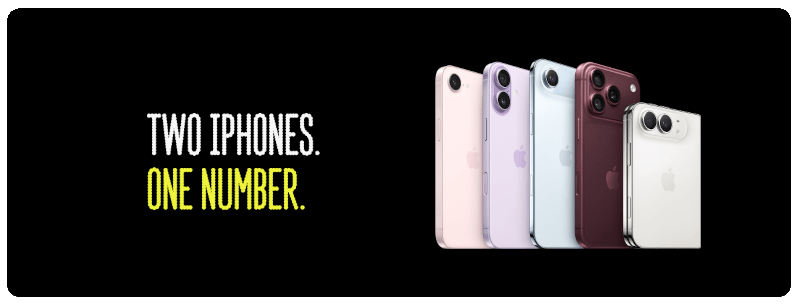
Set up iPhone Handoff

Learn how to set up iPhone Handoff and use one phone number across two iPhone models - your number, calls and messages will be ready to go on whichever phone you decide to take with you.

About iPhone Handoff

iPhone Handoff lets you use the same phone number on two iPhone models, and is only available on EE. You can get it for just £5 a month on a rolling contract — or it's included with EE's Full Works Plus for iPhone mobile plan. 

When you unlock one iPhone, your phone number becomes active on that device. Calls, voicemail, messages (iMessage, RCS, and SMS/MMS), and your Find My location automatically move with it.

Other content stored in iCloud continues to sync between your devices. Third-party apps work across both iPhone models based on each app's own sync settings.

If you need more help with iCloud, please review the the Apple website.

Need to know

You can switch between your iPhone devices at any time by unlocking the one you want to use.

Your phone number can only be active on one iPhone at a time.

Get started with iPhone Handoff

Before you can set up iPhone Handoff, you’ll need to meet the Apple and EE eligibility requirements below.

Apple eligibility

To use iPhone Handoff, you’ll need:

  • two compatible iPhones - iPhone 11 or newer
  • have both iPhones connected to WiFi
  • an eSIM on your primary iPhone
  • the latest version of iOS 27 on both iPhones
  • the same Apple account signed in on both iPhones
  • iMessage and FaceTime signed in on both iPhones

EE eligibility

You’ll also need:

  • An eligible EE mobile plan
  • An uncapped and unlimited data allowance

Can’t see iPhone Handoff in your settings?

The option will only appear if you meet Apple’s eligibility requirements.

Setup iPhone Handoff

previous
next

When setting up a new iPhone, you can enable iPhone Handoff as part of the process. Your new iPhone will become the main iPhone, and your existing iPhone will be the secondary iPhone.

Before you start, place both iPhones next to each other.

  1. Start setting up your new iPhone and follow the on-screen instructions.
  2. On the Set Up Mobile Service screen, select Use Number on This iPhone and Another, then select Continue.
  3. Review the information from Apple, select Continue, then follow the prompts on both iPhones.
  4. If prompted about Apple Watch, choose whether to move your watch to your new iPhone or keep it with your existing iPhone.
  5. Follow the authentication prompt on your primary iPhone to continue to the EE sign-up journey.
  6. Sign in with your EE ID. If you don't have one, you'll need to create one.
  7. Review and accept the £5 monthly charge.
  8. Follow the on-screen instructions to complete setup, keeping both iPhones close together.
  9. Wait for your secondary eSIM to activate. This normally takes 2–5 minutes, but can take up to 30 minutes.
  10. To check iPhone Handoff is set up, go to Settings > Mobile Service > iPhone Handoff. You'll see your primary and secondary iPhones here.

Switch between your iPhones

To switch devices, simply unlock the iPhone you want to use with Face ID, Touch ID or your passcode. Your service will switch to this iPhone.

Removing iPhone Handoff

You need to complete two steps to remove iPhone Handoff.

  1. Delete the eSIM from your secondary device.
  2. Text Cancel iPhone Handoff to 150 for EE to remove the £5 charge.

iPhone Handoff FAQs

No. Only one iPhone can be active on the EE network at a time. Your calls, texts and mobile services will go to the iPhone you're currently using.

No. Calls, texts and mobile services will only go to your active iPhone. When you switch iPhones, your services will move with you.

No. Once you've set up iPhone Handoff, your iPhones don't need to be near each other. Simply unlock the iPhone you want to use to make it your active device.

No. Roaming isn't currently supported with iPhone Handoff. If you're travelling abroad, you'll need to use your primary iPhone for roaming.

You can't currently change a linked iPhone yourself. If you want to change one of your iPhones, you'll need to get in touch.

You'll see an additional mobile number and iPhone Handoff line on your bill. This additional line supports the service and billing. You'll continue to use your existing mobile number for calls, texts and mobile services.

Yes, as long as both eSIMs are on the EE network and meet the eligibility critera.

Each mobile number must be set up separately. Once set up, both numbers will switch together when you unlock the iPhone you want to use.

No. Your Apple Watch will stay paired with its original iPhone and won't automatically switch when you use your other iPhone.

For the best experience, pair your Apple Watch with the iPhone you use most often.

If both iPhones are connected to the same WiFi network, Apple's Allow Calls on Other Devices setting may cause both devices to ring.

To check or change this setting, go to:

Settings > Apps > Phone > Calls on Other Devices

You can then turn off Allow Calls on Other Devices or choose which devices can make and receive calls.

Help with iPhone Handoff

Check that:

  • both iPhones are running iOS 27 or later
  • both devices are connected to WiFi
  • both devices use the same Apple Account
  • Messages in iCloud is turned on
  • FaceTime and iMessage use the same Apple Account
  • both devices have an active eSIM

If you're still having problems, get in touch.

  1. Lock the active iPhone.
  2. Unlock the iPhone you want to use.
  3. Wait for the message Switched to this iPhone to appear.

If it still doesn't switch:

  • check both devices are connected to the internet
  • restart both iPhones

If you're still having trouble, get in touch.

Check that:

  • Messages in iCloud is turned on
  • both devices are connected to WiFi
  • both devices use the same Apple account

Allow some time for messages to sync before trying again.

Some third-party apps may:

  • sign you out when you sign in on another device
  • take time to sync
  • require approval from your existing device before access is granted

This is controlled by the app provider rather than iPhone Handoff.

Need extra support?

If you need information in an accessible format or require additional support, contact us.

You may be able to get support through:

  • accessible contact channels
  • text relay services
  • alternative formats
  • support for an authorised person acting on your behalf

Was this article helpful?

Thank you for your feedback!
Sorry about that! Why didn’t this article help you?