Set up your hub with the EE app
The quickest way to set up your EE Smart Hub is by following the instructions in the EE app.
- Download and open the EE app.
- Select Manage.
- Go to Manage.
- Select I need to plug in my hub.
- Follow the helpful tips to set up your hub and get connected.
Need to know
If you're setting up a replacement hub, disconnect your old power supply and plug in the new one from the box.
Broadband problems?
Login and we'll test your broadband connection to find any problems you may have, 24 hours a day.
From slow speed to a dropping connection, we'll be able to restart your router or book you an engineer visit.
Set up without using the app
Follow these steps to set up your hub.
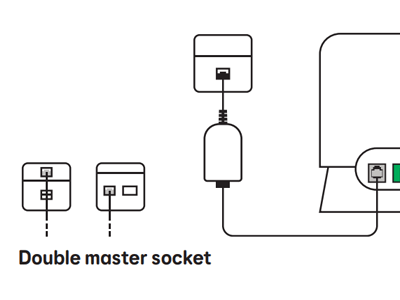
Connect your Smart Hub 6 Plus to your phone line
- Plug the broadband cable with the grey ends into the socket marked Broadband on the back of your hub.
- Plug the other end into the broadband filter supplied in the box.
- Plug the filter into your phone socket.
Tip: Some Openreach sockets come with a built in filter, sometimes called a double master socket. If you have one of these, you don't need to use the filter we sent with your hub.
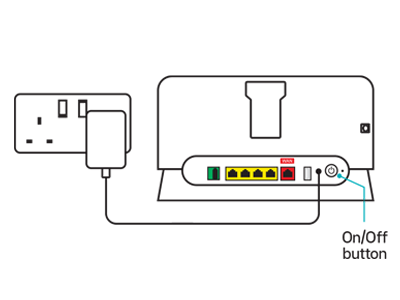
Power up
- Plug the power cable into the back of your hub.
- Connect your hub to a power socket and switch it on.
- Push the hub’s Power button.
If this is a replacement hub, please use the new power supply.
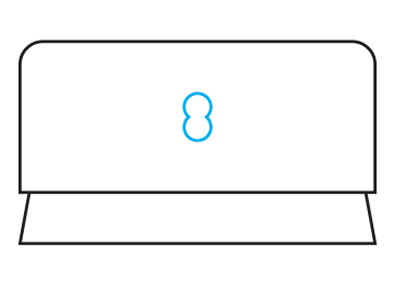
Check the lights
- The front light will initially go green.
- After 5-10 minutes, it will go solid aqua to show it's ready.
Light not solid aqua? Find out what the lights on your Smart Hub 6 Plus mean.
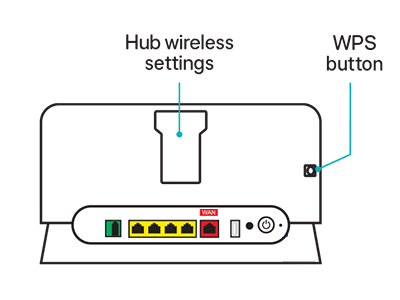
Connect your devices
If your device has a camera, scan the QR code on the back of the hub to connect.
Otherwise, use the WiFi network name and password from the card included in the box. It's also printed on the back of the hub.
For devices that support WiFi Protected Setup (WPS), press the WPS button on the side of the hub and follow your device's instructions to connect.
Watch our setup video
Setting up your other equipment
If you've got other EE equipment to set up, select the options below to take you to the instructions.