Fix a problem with WiFi Extender

This article helps you troubleshoot WiFi Extender issues, understand device lights, and manage settings, ensuring seamless connectivity and efficient problem-solving.

WiFi Extender lights

The following describes what the lights mean, after the WiFi Extender has started-up, use the instructions to try to fix the problem.

previous
next


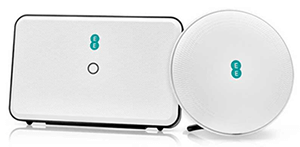
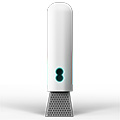
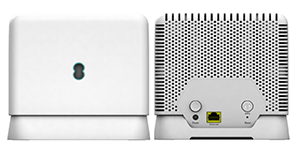
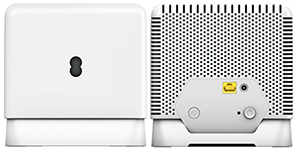
Front image of the EE Smart WiFi Plus

  • Green - your device is starting up. It takes roughly a minute to fully turn on.
  • Aqua - your WiFi Extender is all connected. Good WiFi or an ethernet connection.
  • Orange - WiFi Extender 7 Pro is working okay. Try moving it closer to the hub or one of the other WiFi Extender 7 Pro devices.
  • Red - there’s a problem. Turn your Smart Hub and WiFi Extender 7 Pro device off and on again. If the light still doesn’t turn aqua, press the WiFi Extender 'factory reset' button with a paper clip or pen.
  • Flashing orange - your WiFi Extender 7 Pro is not connected to your Smart Hub. Connect using WPS or ethernet cable.
  • Flashing blue - the WiFi Extender 7 Pro device is connecting. WPS is on and connecting to your hub or device, this could take a couple of minutes.
Where to put your WiFi Extender

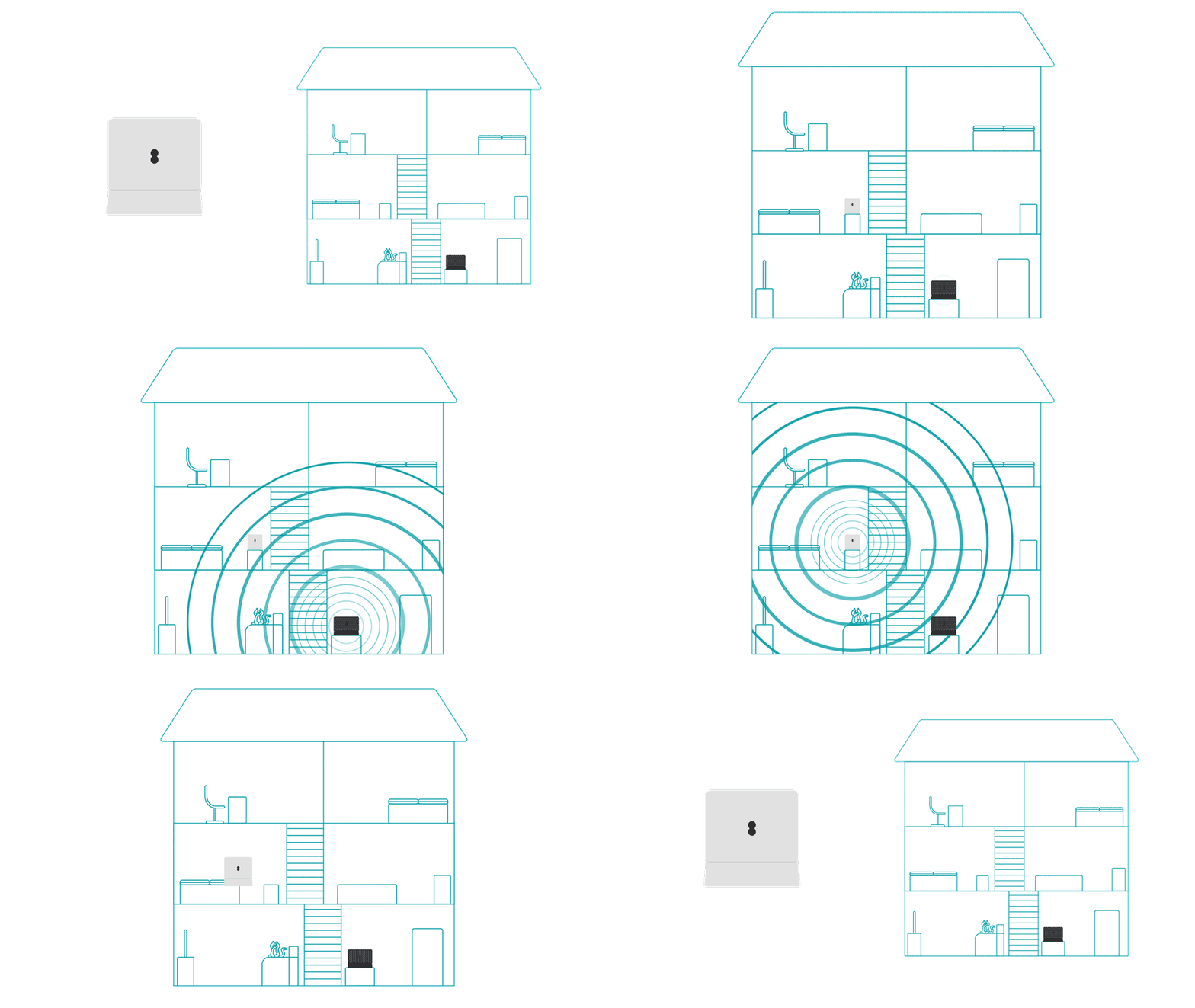
Visualisation of where to place your WiFi Extnder device

The ideal position for your WiFi Extender is halfway between your Smart Hub and where you need a better signal.

Try to avoid placing it:

  • near other devices with signals such as a TV, microwave or a baby monitor
  • on a shiny or metallic surface as this may scatter your signal
  • near a fishtank or window, as some of your signal will be wasted
  • in a cupboard or with too many walls between it and where you want signal as doors or walls may absorb and weaken your WiFi signal

Don't have too many WiFi Extender

It’s tempting to think more devices = better WiFi. But using too many can actually make things worse:

  • devices get confused about which signal to connect to
  • overlapping signals cause interference and slowdowns
  • daisy chaining (extenders connecting with other extenders – rather than direct to your Smart Hub) weakens the connection

Change WiFi Extender settings

The easiest way to manage your WiFi Extenders and WiFi settings is using the EE app:

  1. Download and open the EE app.
  2. Select Manage.
  3. Select Broadband.
  4. Select the device shown under Your WiFi Extenders
  5. Select your preferred option.

Settings you can adjust or create using the EE app include:

  • changing the brightness of the WiFi Extender lights 
  • setting and managing parental controls
  • setting and managing device groups
  • setting and managing schedules to pause or start WiFi

Smart Hub lights

Your WiFi Extenders help boost your broadband around your home. If something goes wrong, your Smart Hub will show you what’s happening and how to fix it.

Understand what the lights on your Smart Hub mean

Test your broadband

Check the status of broadband in your area if you're still having problems.

If there aren’t any problems in your area, you’ll have the option to test your home connection.

Check your broadband connection

Was this article helpful?

Thank you for your feedback!
Sorry about that! Why didn’t this article help you?